Integrating Google Home with JellyFish Lighting
Download and open the Google Home app
Login to your Google account in the Google Home app
Go to the “Devices” section
Press the “+ Add Device” button in the middle of the screen
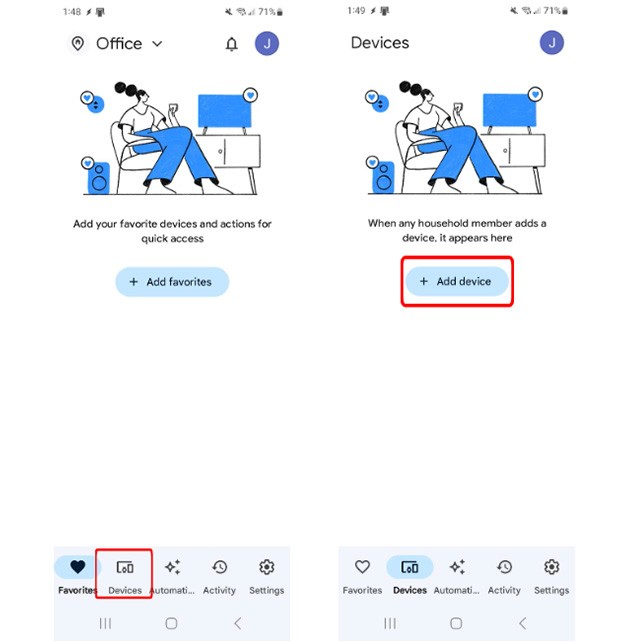
Press “Works with Google” and search for JellyFish
Follow the instructions and sign into your JellyFish Cloud account when instructed to
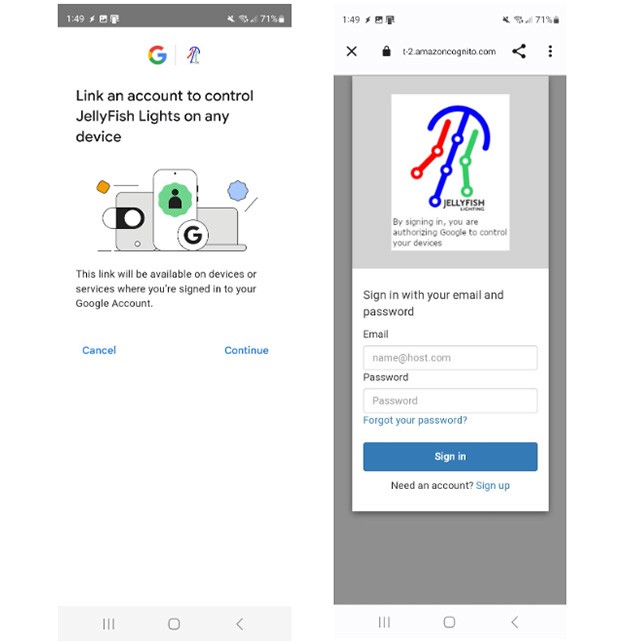
You are done! Your devices will appear in the Google Home app shortly
Using Google Home with JellyFish Lights
Devices
Shortly after linking your JellyFish Lights with Google Home, a number of devices/lights will appear on your Google Home app
There will be one device for every zone you have between all your JellyFish controllers
Smart Home commands
Capabilities are: Turn lights on/off, change the brightness, set a single color
Automation lights are explained earlier on in this document
Example zone used: Front of House
Turning the lights on and off
“Ok Google, turn on Front of house”
“Ok Google, turn Front of house off”
Changing the brightness of the lights
“Ok Google, change Front of house lights to 50 percent brightness”
“Ok Google, increase brightness of Front of house lights by 25”`
Playing a single color
“Ok Google, set Front of house to warm white”
“Ok Google, turn Front of house blue”